START HERE
Install & activate Sync
Use the download supplied with your order. Sync is a Windows application; the installer requires a 64-bit version of Windows 10 or Windows 11. AI performance also depends on your graphics card, model and the game running alongside it.
- Open your order. Sign in to your customer account, find the Sync purchase and download its installer. Keep your order number and activation details.
- Run the installer. Follow its steps and keep the application files together. Restart Windows if a driver installation requests it.
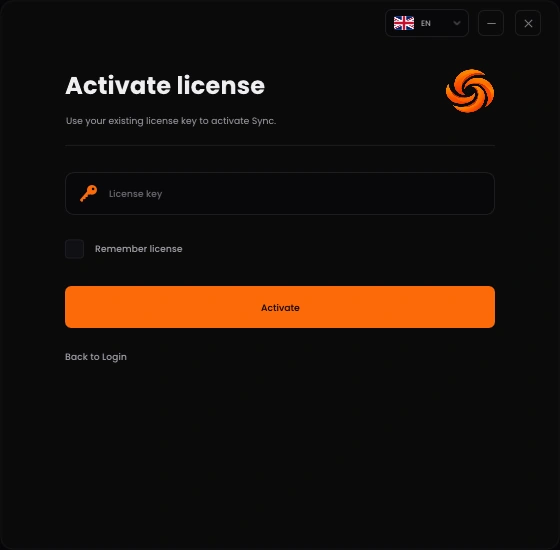
- Launch Sync. Activate using the method provided with your purchase. For a supplied key, open the license form, paste the complete value in License key, then select Activate. Do not add spaces or change the key.
- Use account sign-in when applicable. If your activation instructions use a Sync account, choose the account login form. The store account and an application account are not automatically interchangeable.
- Check the workspace. Successful activation opens Sync. Confirm your subscription under Settings → License before configuring a Plus feature.
Missing a download or activation details? Check the order in your customer account and the purchase email, including spam. Contact support with the order number rather than buying a second subscription.
YOUR PLAN
Starter, Plus & recurring billing
Sync is sold as a renewing subscription. Check the selected plan, billing interval, price and renewal details in checkout and on your order. Supported recurring payment methods are charged automatically; other methods can require payment of a renewal invoice. Follow the confirmation shown for your payment method.
| Feature | Starter | Plus |
|---|---|---|
| Controller tuning, remapping & virtual output | Included | Included |
| Mouse & keyboard, macros, profiles & controller overlays | Included | Included |
| AI AimAssist | Plus required | Included |
| USB controller overclock | Plus required | Included |
| PlayStation Remote Play | Plus required | Included |
- Check your current plan in your purchase details and Sync's license area. On Starter, the AI page remains visible with an Unlock with Plus Subscription message; its controls cannot be used.
- Manage billing through your order or account. Open the customer dashboard, locate the subscription and use the subscription management link provided there or in your billing email.
- Review renewal or cancellation confirmation. Closing Sync, uninstalling it or turning off a feature does not cancel recurring billing. Use the actual subscription management flow and check its displayed effective date.
- After a plan change or a renewal, verify the active license. Reopen Sync or sign in again if the application still shows the old entitlement. If a renewal delivers new activation details, use the latest order instructions in Sync. Contact support if a paid Plus subscription continues to appear as Starter.
AI stays off at startup. A Plus subscription unlocks access; it does not start AI. You must choose Enable AI yourself after each application launch.
INPUT
Connect & check your controller
- Connect the controller before changing its mappings. For USB, use a data-capable cable. For Bluetooth, pair the controller in Windows first, then open Sync.
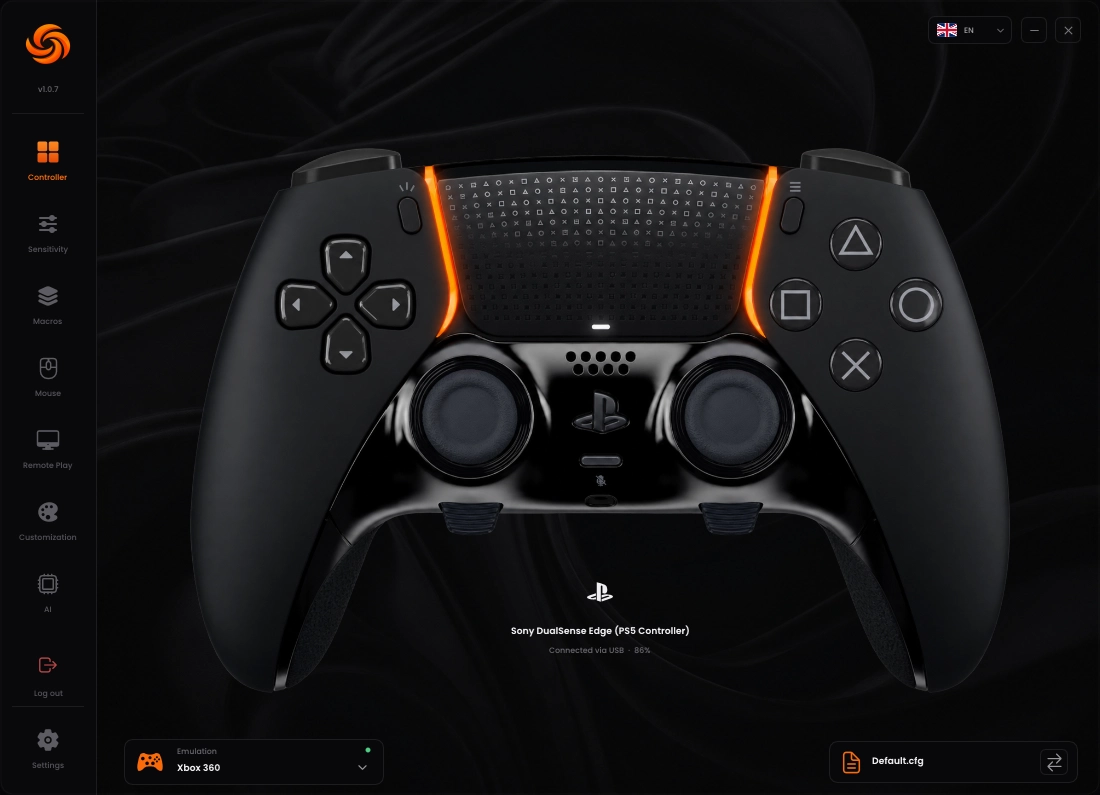
- Open Controller. Check the controller name and connection status. Use the device selector to choose your controller if several are connected, or keep Automatic (first connected).
- Test the physical inputs. Press the face buttons, bumpers, triggers and rear controls, then move both sticks. Confirm Sync responds to the input you intended.
- Resolve device recognition first. If nothing responds, reconnect with USB and check the controller or mapping notice in Settings. A controller that needs a mapping must be recognised before profiles or macros can work correctly.
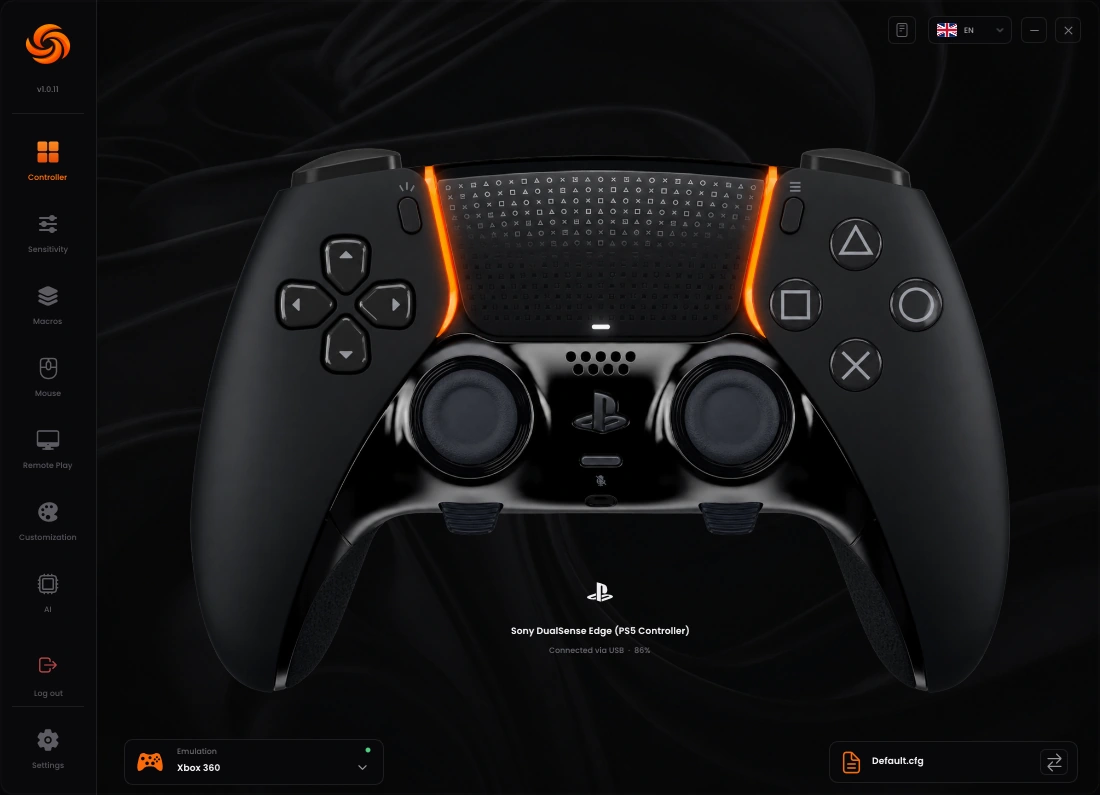
Some rear buttons are configured in the controller manufacturer's software to duplicate another button. Only rear inputs exposed separately to Windows can be mapped independently in Sync.
ROUTING
Virtual output & exclusive mode
Sync reads your physical inputs and can send the processed result through a virtual controller. The game must receive that output for remapping and controller macros to affect it.
- Open Settings. Under the controller settings, choose Virtual controller and select the output supported by your game, such as Xbox 360 or DualShock 4.
- Install ViGEmBus if Sync asks. Use the driver action shown in Settings and follow the installer. Restart if requested. ViGEmBus supplies the virtual controller.
- Check the game input setting. Select controller input in the game where required, then test a simple button. Confirm the processed controller is the one your game uses.
- Enable Exclusive mode to resolve double inputs. Install HidHide if the application reports it missing, then enable Exclusive mode. Sync adds its executable to the HidHide application allow list when configuring this mode.
- Reconnect if needed. If the game still sees both physical and virtual controllers, reconnect the physical controller and restart the game's input detection. An administrator or HidHide warning must be resolved before exclusive mode can work.
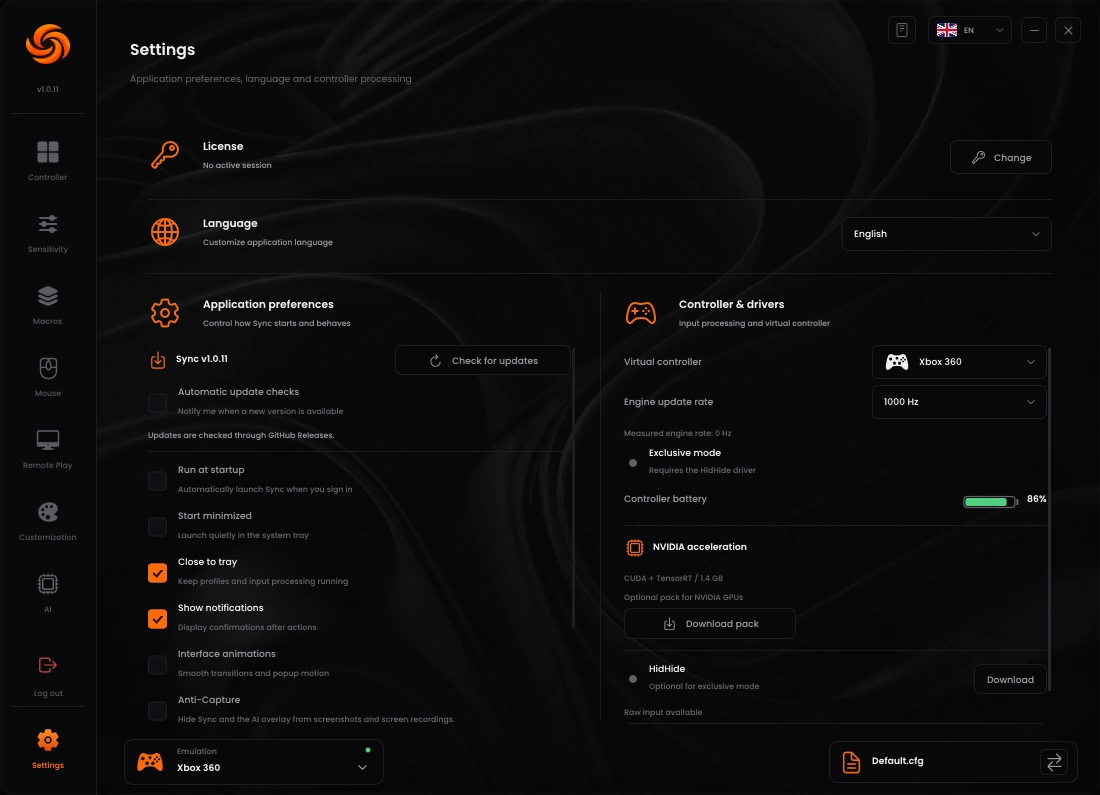
ViGEmBus and HidHide have different jobs. ViGEmBus creates virtual output; HidHide prevents games from also receiving the physical device. If inputs disappear after enabling exclusive mode, disable it temporarily, then check that the current Sync executable is allowed in HidHide and inverse cloaking is disabled.
CONTROLLER
Remap buttons, sticks & triggers
Assign a button
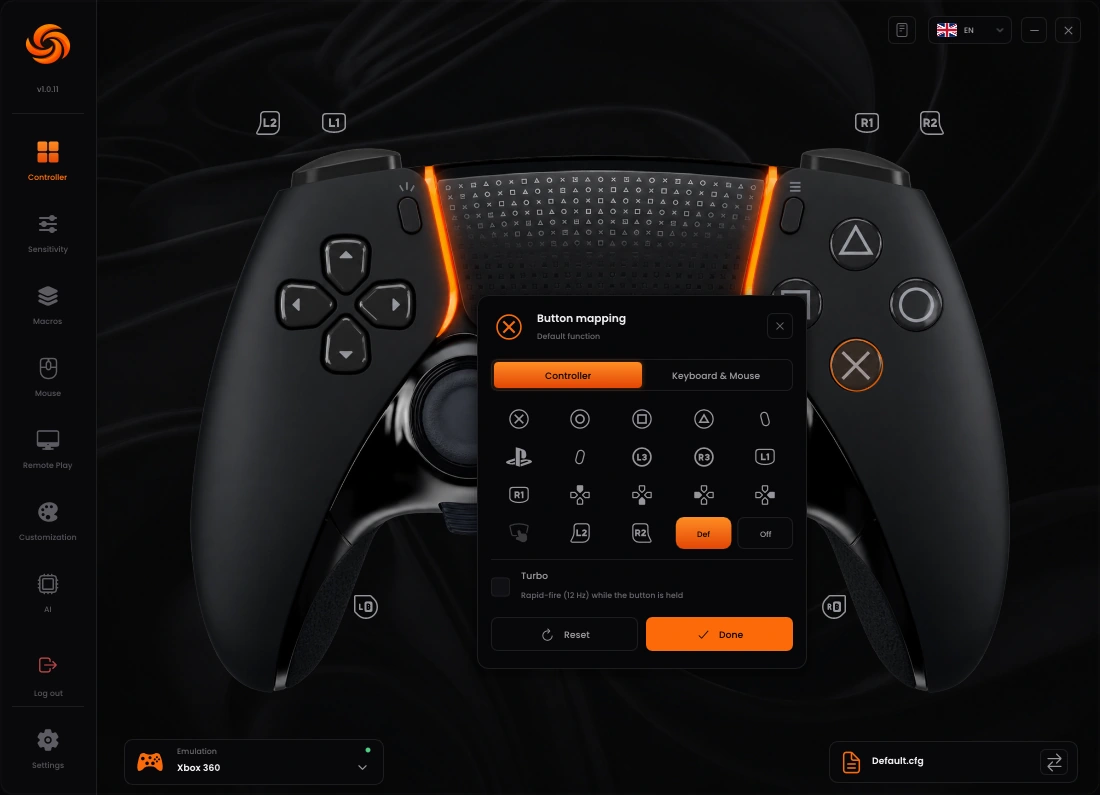
- On Controller, click the button or rear control you want to change.
- In its assignment panel, choose a controller action or a keyboard/mouse action. Check the displayed input name so you do not edit the neighbouring trigger or bumper.
- Select the required output, confirm with Done, then press the physical button and test the result in the game.
Set the stick response
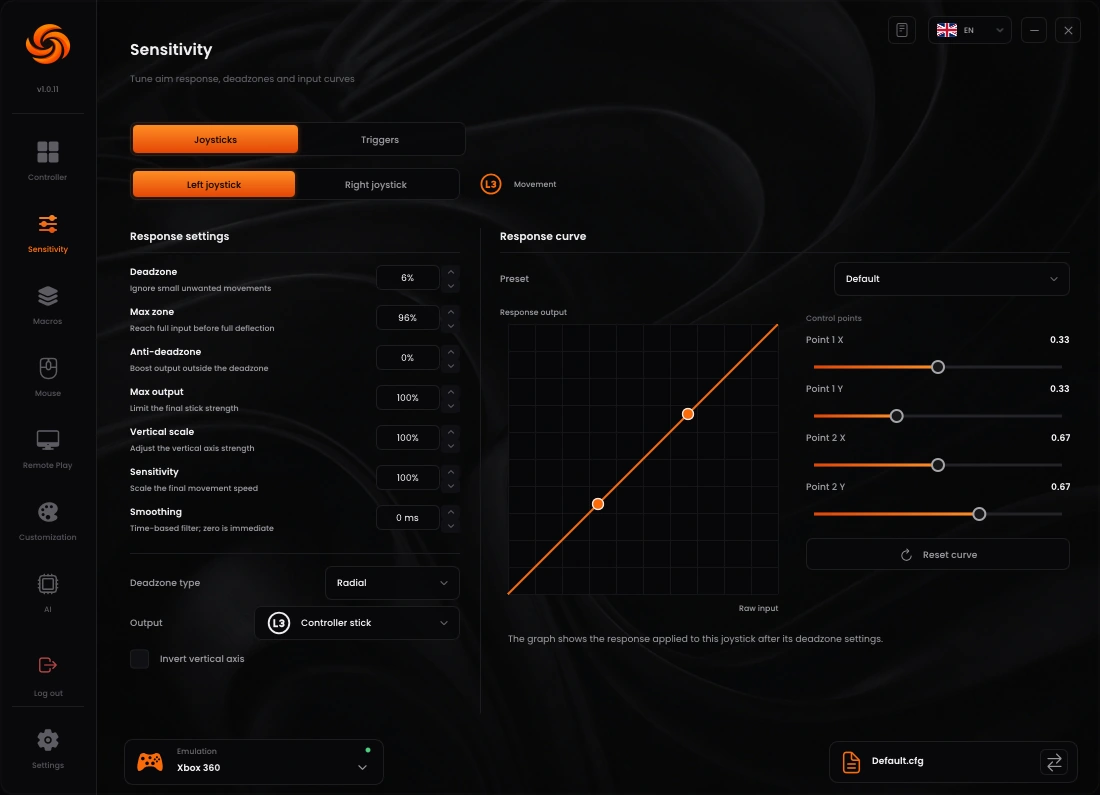
- Open Sensitivity → Joysticks and select the stick you want to edit.
- Increase Deadzone only enough to stop unwanted movement when the stick is released. A larger deadzone removes more small intentional input.
- Choose a response curve and check the graph. Use Sensitivity, Max output and Vertical scale for the required response; leave unrelated controls unchanged while testing.
- Use Smoothing only when needed. More filtering can soften movement but also delay the response. Verify both small adjustments and a full turn.
Set trigger activation
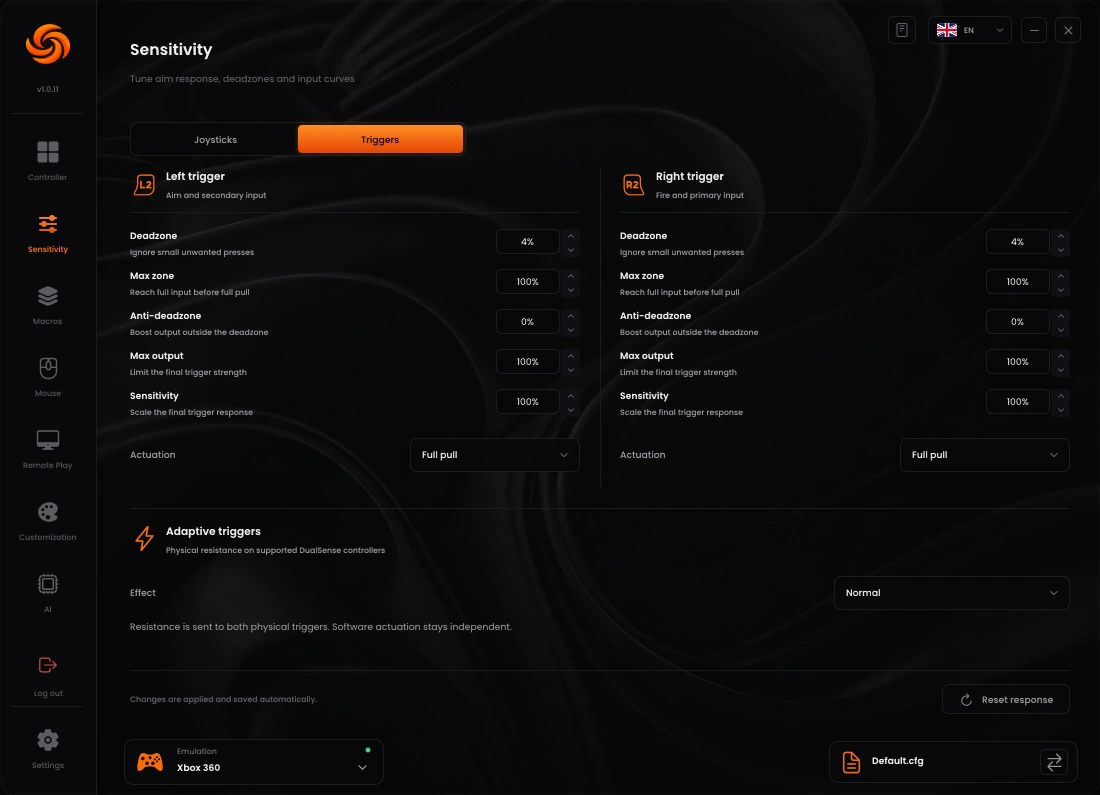
- Open Sensitivity → Triggers and select the left or right trigger.
- Set its active range and Actuation. A software hair-trigger setting reaches full output earlier in the pull; it does not physically shorten the trigger.
- Check that a released trigger reads as released and a full pull reaches the intended output. Trigger effects depend on the controller's capabilities.
MOUSE & KEYBOARD
Configure capture & bindings
- Open the mouse setup page and enable Mouse & keyboard input.
- Choose the Capture mode and set a Capture key. The default is F8. Remember this key before you capture the mouse: toggle mode switches capture on/off; hold mode captures while held.
- Choose the Output stick. Camera movement normally uses the right stick. Set the mouse Resolution to match the DPI configured on your actual mouse.
- Start with a moderate sensitivity and the selected response preset. Test a slow movement and a fast turn, then adjust one axis or filter at a time.
- Open Bindings. Map Mouse buttons, configure Movement keys, and use Keyboard bindings → Edit all for additional keys.
- Switch the game to the intended input type. Activate capture with your chosen key and verify looking, moving, aiming and firing. Release capture before editing Windows or another application.
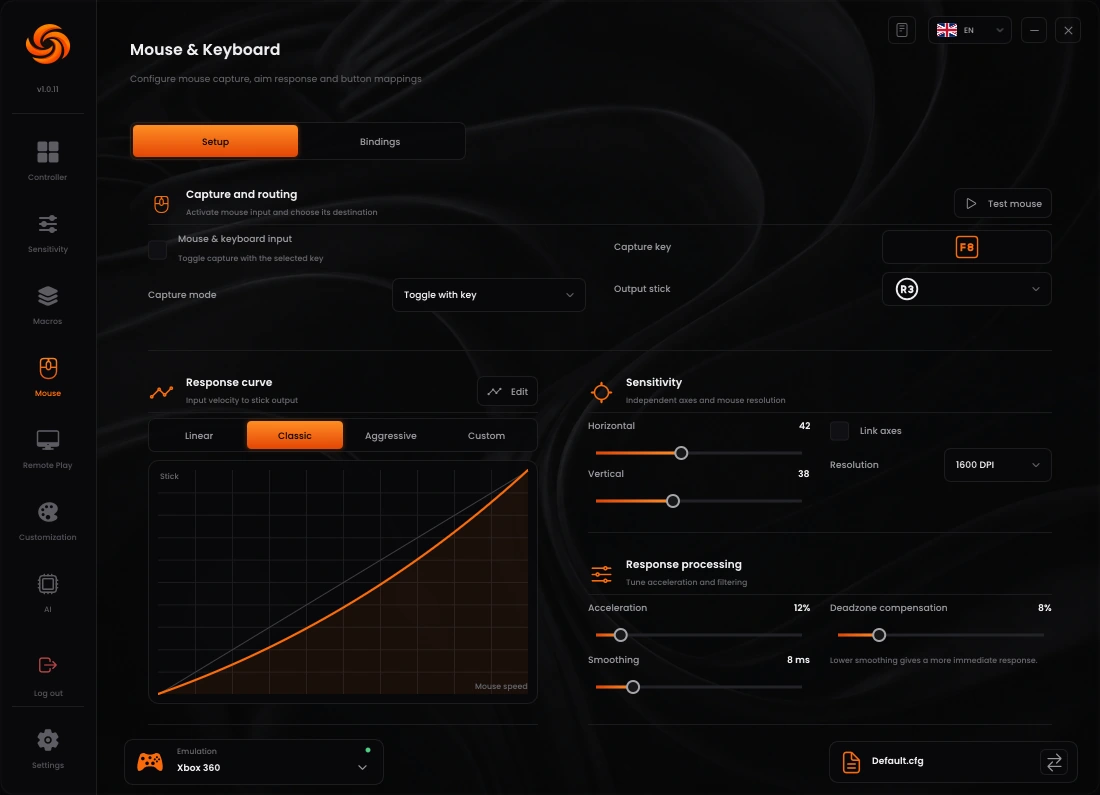
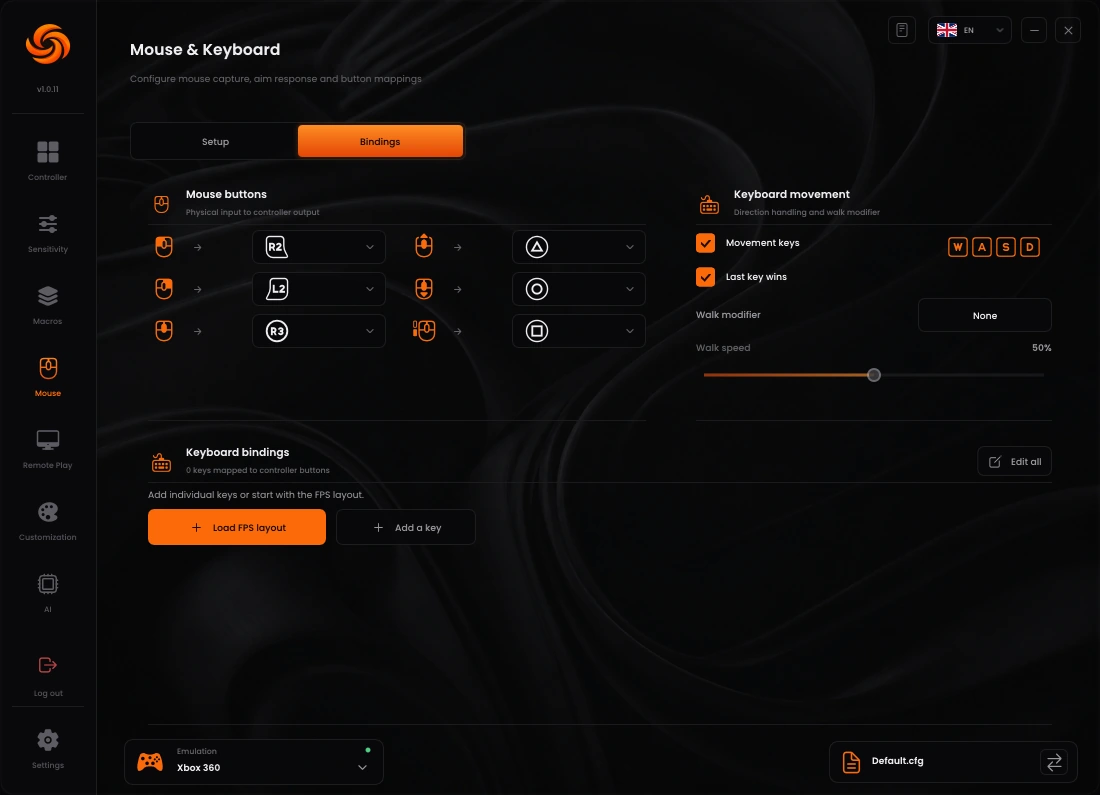
Mouse-to-stick input follows the game's controller turn-speed limits. Increasing mouse sensitivity cannot remove that limit. Check game sensitivity and Sync response together when fast swipes feel inconsistent.
MACROS
Add a preset or build your own
Start with a preset
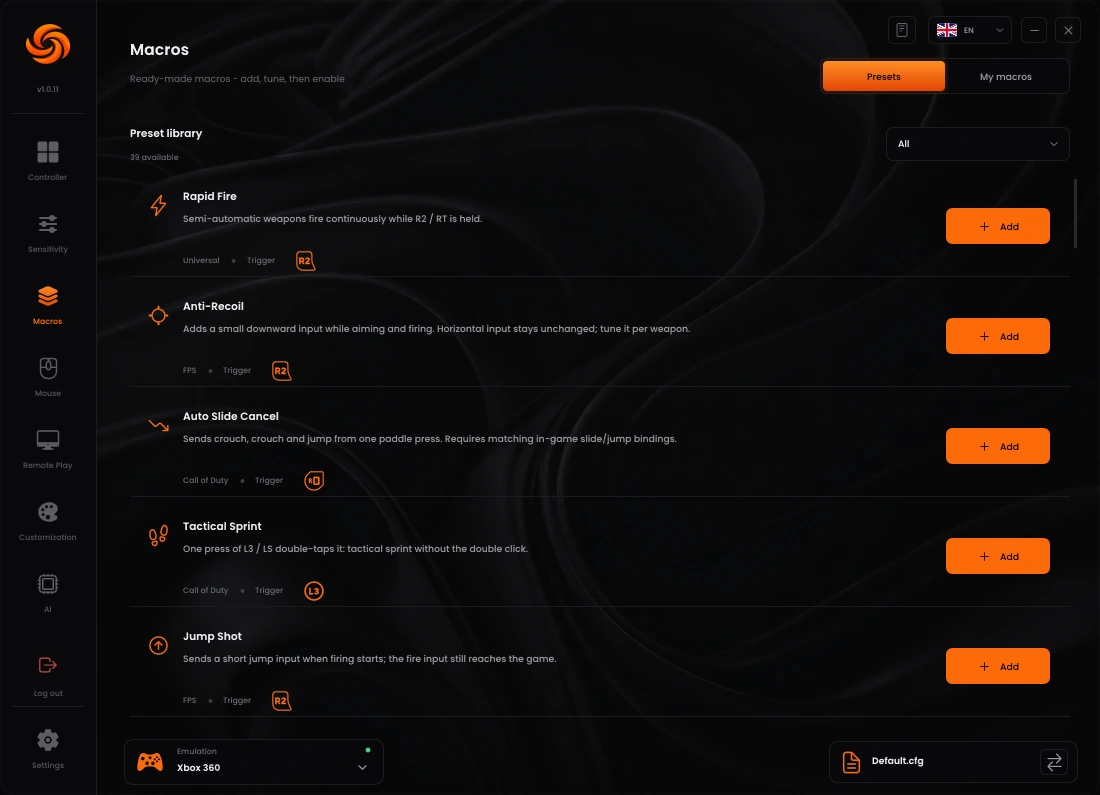
- Open Macros → Presets. Choose the relevant game or family and select Add on a preset.
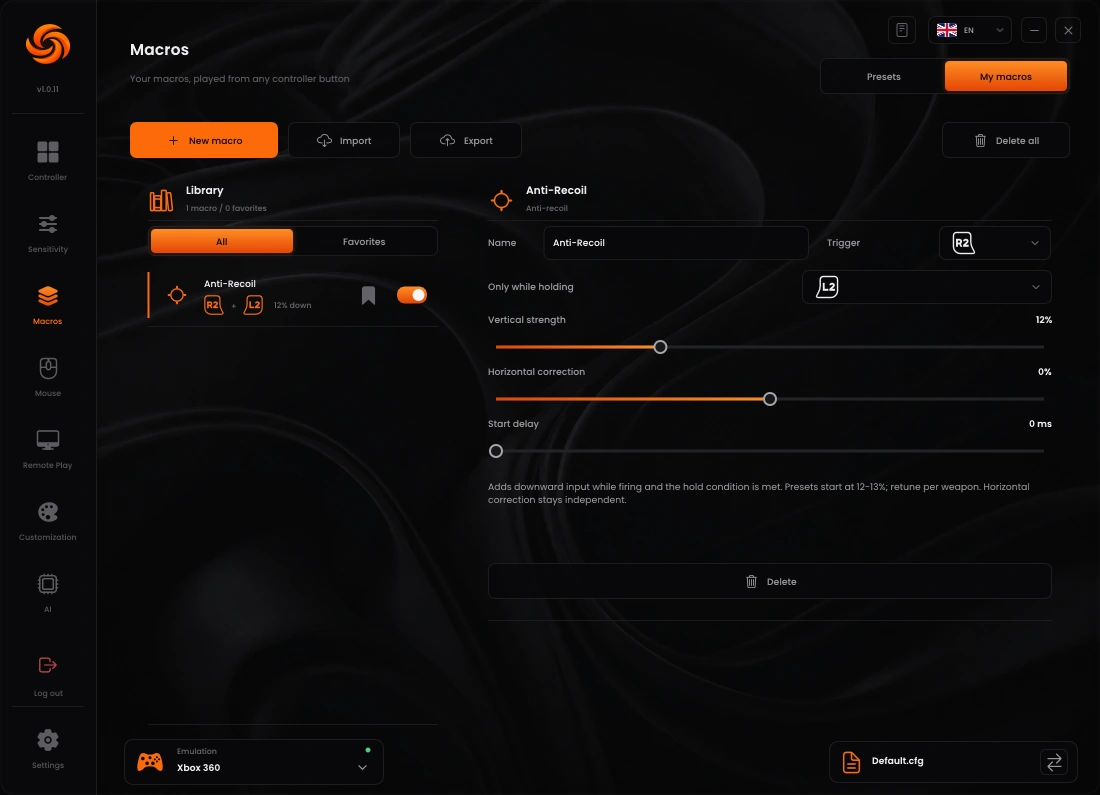
- Open My macros and select the added macro. Check its Trigger, output and any Only while holding requirement.
- Enable the macro with its switch. Adding a preset does not start sending its inputs automatically.
- Test that single macro first. Its output buttons must match the game's own bindings; a crouch sequence cannot slide correctly when it sends a button assigned to another action.
| Preset family | Configure first |
|---|---|
| Rapid Fire / Burst Fire | Check the fire output and pulse timing. The game or weapon may limit the accepted firing rate. |
| Anti-Recoil | Start with modest vertical correction, then adjust per weapon while aiming and firing. Reduce correction if the camera pulls down. |
| ADS Micro Movement | Check the chosen stick, amplitude and activation requirement. This repeats a small input pattern; it is separate from visual AI detection. |
| Slide / Jump / Sprint sequences | Match the game's crouch, jump and sprint bindings, then tune press and release timing. Begin the required movement yourself. |
Edit or record a sequence
- In My macros, select New macro or an existing sequence.
- Choose Once, While held or Toggle. Once runs one sequence; While held repeats while the trigger is held; Toggle starts and stops with successive trigger presses.
- Use Add step to add Press, Release and Wait actions. Include a release after a held button so the sequence does not leave it pressed.
- For a recorded sequence, select Record, perform the controller inputs, then select Stop. Review the recorded buttons and timings before using it.
- Use Play to test the selected sequence where appropriate, then Stop. Disable any other macro using the same trigger until this one behaves correctly.
PROFILES
Keep each setup organised
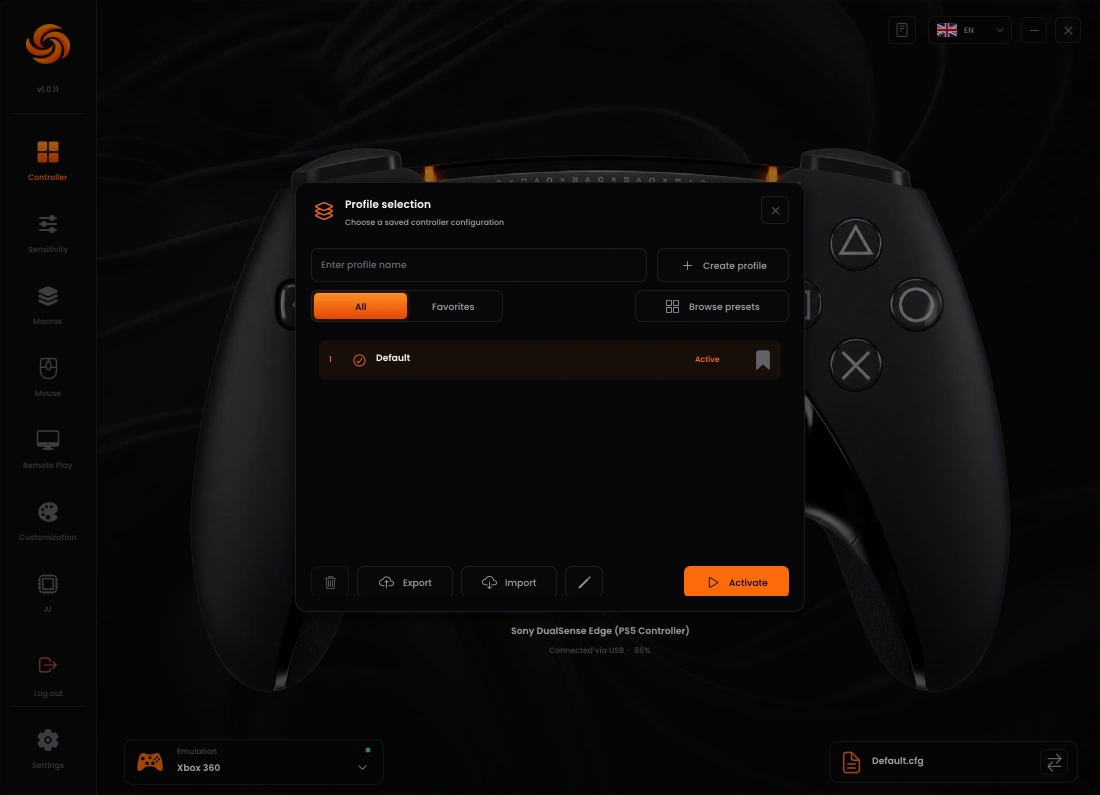
- Open the profile selector. Select Create profile to start a separate setup, or open Profile presets, choose a starting point and select Create from preset.
- Select the profile you want and choose Activate. Check the active profile name before making changes; edits are saved to the active setup.
- Use the profile's edit action to change its name or category. Select Duplicate in that panel before experimenting with an existing setup.
- Keep separate profiles for games with different sensitivities, controller layouts or macro requirements. A preset is a starting point and may still need matching to your in-game settings.
- Select Export to save a
.cfgbackup. To restore or use a supplied profile, select Import, choose the file, then activate the imported profile. - Review imported mappings and enabled macros before playing. Importing a profile does not change your subscription or permit a locked Plus feature.
AI AIMASSIST PLUS
Run Automatic Setup
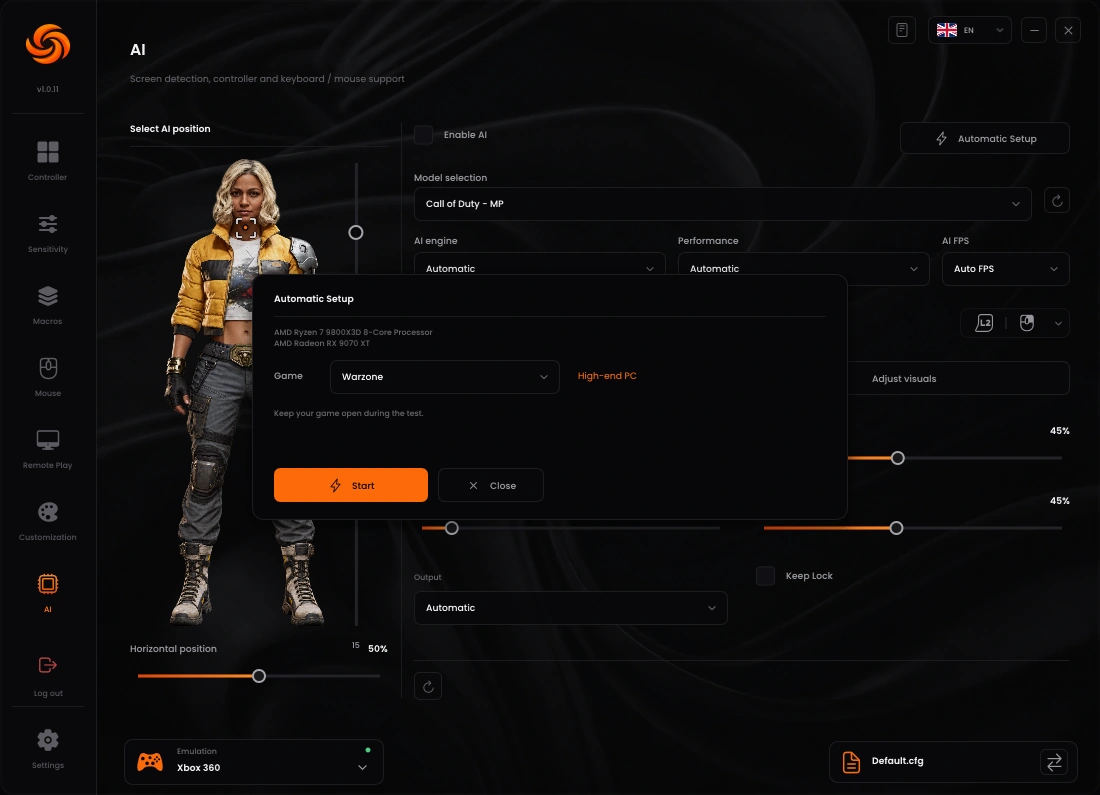
Automatic Setup measures available AI engines and candidate models for the selected game. It recommends a starting configuration for the current workload; it does not promise a fixed game frame rate or perfect detection.
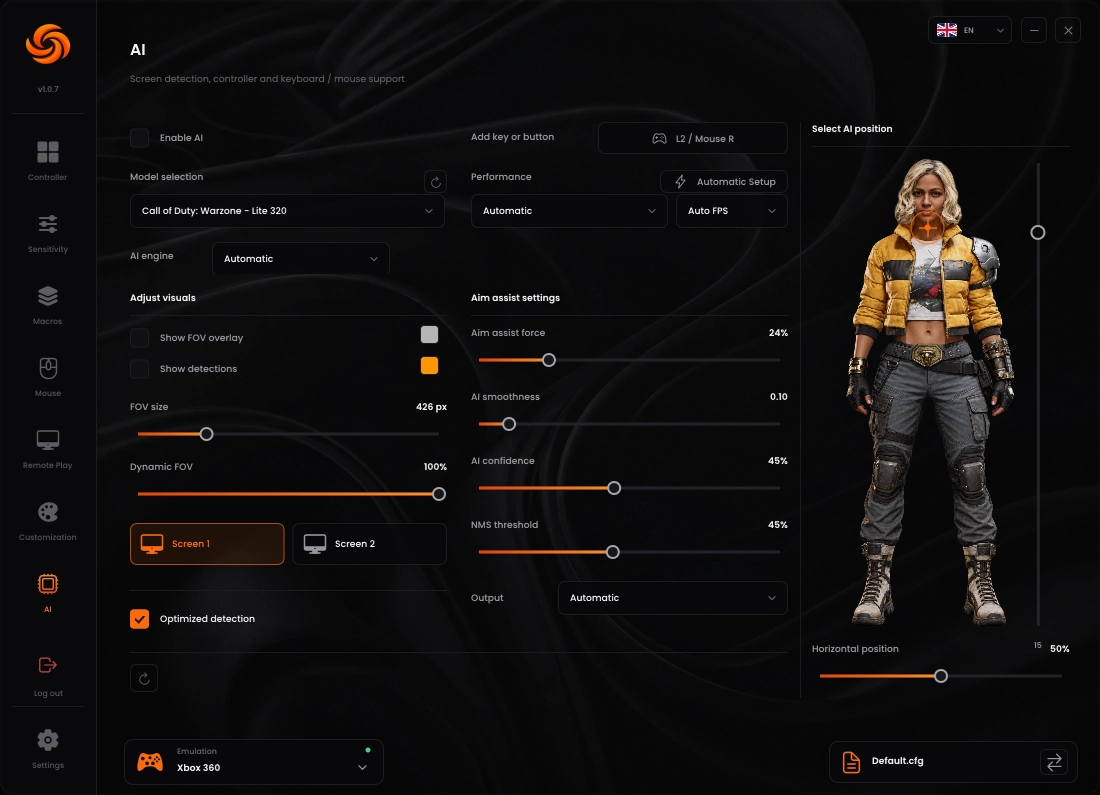
- Open AI with an active Plus subscription. Keep Enable AI off while configuring or running the diagnostic.
- Select Automatic Setup beside Performance, then choose your Game. Choose the matching family for Warzone, Fortnite or Apex when available; use a universal option for a broader starting point.
- Select Start. Let the measurements finish. Running the game in a representative scene gives the diagnostic a more relevant picture of the resources available alongside it.
- Review the proposed engine, model and settings. If Sync warns that the available performance is insufficient, reduce the workload or keep AI off rather than assuming a higher FPS limit will fix it.
- Select Apply to use the recommendation. If you change the selected game or model before applying, run the appropriate diagnostic again.
- Close the setup window, choose the activation input and screen, then enable AI manually when you are ready to test.
Choose the AI engine
Keep AI engine → Automatic for the available-engine comparison, or choose DirectML, CUDA or TensorRT when supported. DirectML is the general GPU route. CUDA and TensorRT require a compatible NVIDIA GPU and the separate Sync NVIDIA pack; they are not enabled just by selecting their names.
- If you need NVIDIA acceleration, close Sync and install the separate NVIDIA pack supplied for Sync. That pack adds AI dependencies; it does not replace the main Sync installation.
- Reopen Sync, select a model and engine, then check the engine name and diagnostic information on the AI page. An unavailable engine or a dependency error must be resolved before that backend can run.
- Allow extra time on the first TensorRT use while the model is prepared. Compare measured inference time with the same model and scene rather than expecting a visible difference on a still image.
Hardware category, AI processing rate, game FPS and controller polling rate are different measurements. A fast GPU can still have limited headroom while a demanding game is running.
AI AIMASSIST PLUS
Choose your activation & tune detection
- Select a model for the actual game. Choose a lighter model for less processing or a more detailed candidate when resources allow. A model for another game can miss players or detect interface elements.
- Choose an AI FPS limit. Choose Auto FPS or a manual limit of 60, 90, 120, 144 or 165. This is a maximum processing rate, not a guaranteed rate. Use the measured FPS and inference time to assess the result.
- Set the activation input. Open Add key or button, select your controller button and/or keyboard or mouse input, then confirm with Done. Verify the selected activation mode; do not choose Always active unless that is intentional.
- Select the screen. Choose Screen 1 or Screen 2 for the display containing the game. Enable Show detections and, if useful, Show FOV overlay while checking the setup.
- Choose the target position. Click the intended body area on the character preview. The vertical control and Horizontal position adjust the point inside the detected box.
- Check Output. Choose Automatic, Controller or Keyboard & mouse to match your actual input route. Verify the game receives that output; a visible box alone does not prove the game is receiving adjustments.
- Enable AI yourself. Return to the game, hold the selected activation input and test. Turn AI off when you finish. Opening the AI page, applying a recommendation or detecting Plus must not start it automatically.
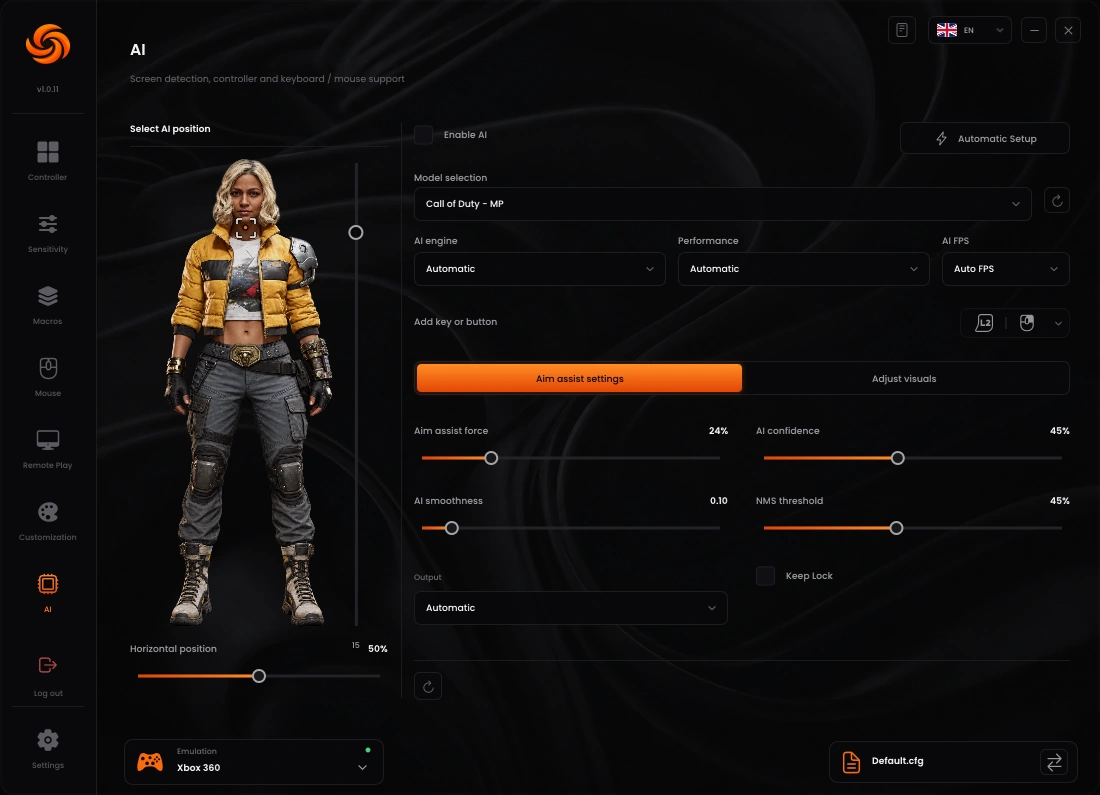
| Control | What it changes | What to check |
|---|---|---|
| Aim assist force | Strength of the controller adjustment or mouse correction. | Increase gradually if correction is weak; reduce it when movement overshoots or oscillates. |
| AI smoothness | Filtering applied to aim adjustment. | More filtering can soften small changes but add follow delay. Compare both a still and a moving target. |
| AI confidence | Minimum model score needed to accept a detection. | Raise it to reject weak false detections; lowering it may recover players but also admit more false positives. |
| NMS threshold | Overlap threshold used to suppress duplicate detections. | A lower threshold suppresses overlapping boxes more aggressively; a higher one retains more. Check two nearby players as well as a single target. |
| FOV size / Dynamic FOV | The selection area and its size while a target is locked. | A very broad area admits more candidates. Check acquisition, tracking and release without changing other controls at the same time. |
| Optimized detection | Limits processing to the detection area and adapts capture work. | Compare actual resource use and detection in your own scene after enabling it. |
For Remote Play: enable a video session and verify a clear live image first. Controller Only does not provide a decoded video feed. AI needs a visible/capturable image source; it cannot detect a game shown only on a separate TV with no capture input.
REMOTE PLAY PLUS
Connect on the same network
For a local session, connect the PC and PlayStation to the same router. Ethernet on both devices is a useful starting point for a stable stream. An Internet speed test does not measure the quality of this local link.
- On PS5, open Settings → System → Remote Play and enable Remote Play. On PS4, use Settings → Remote Play Connection Settings.
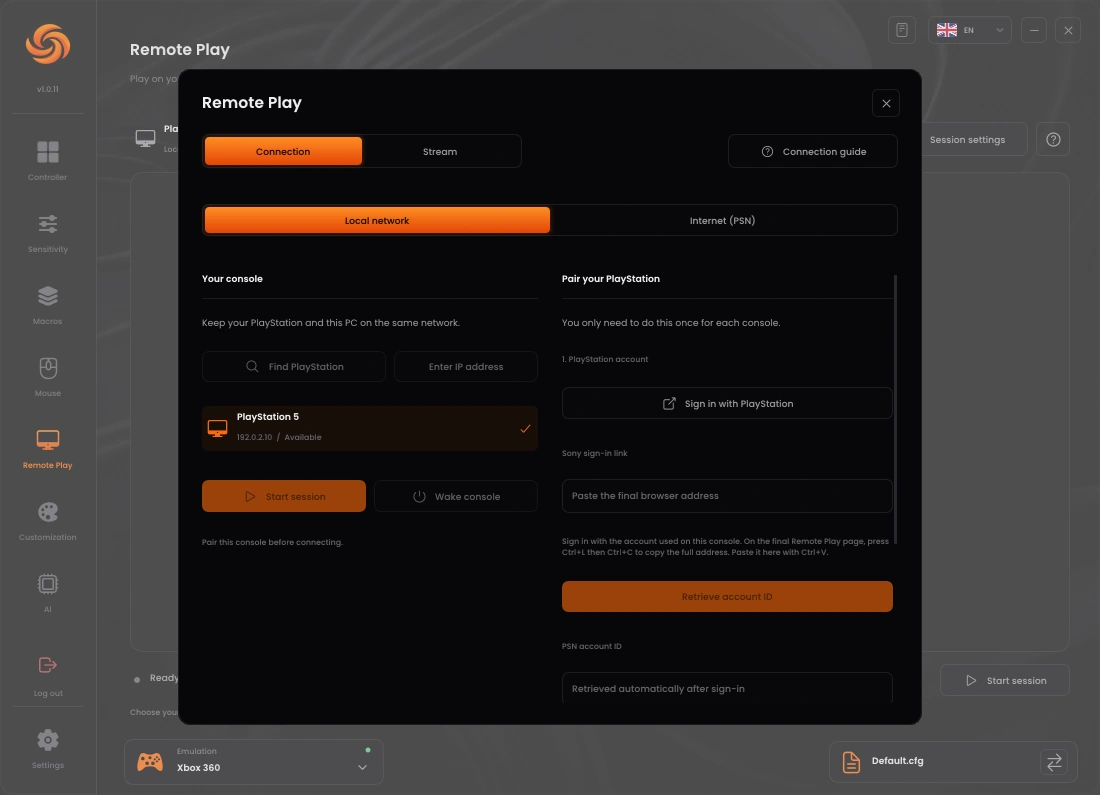
- In Sync, open Remote Play and select Local network. Open Connection guide for the guided steps, or select Find PlayStation.
- Select your console from the results. If discovery finds nothing, check the local network and use Enter IP address to add the console's current local address when needed.
- For the first local pairing, select Sign in with PlayStation. Complete Sony sign-in using the account on the console. Copy the full final browser address, paste it in the Sony sign-in link field, then choose Retrieve account ID.
- On PS5, open Settings → System → Remote Play → Pair Device. On PS4, choose Add Device in its Remote Play settings. Enter the current 8-digit code in Sync and select Pair this console before it expires.
- Choose your session settings before connecting, then select Start session. Test both controller input and console audio. Use Disconnect to end the session.
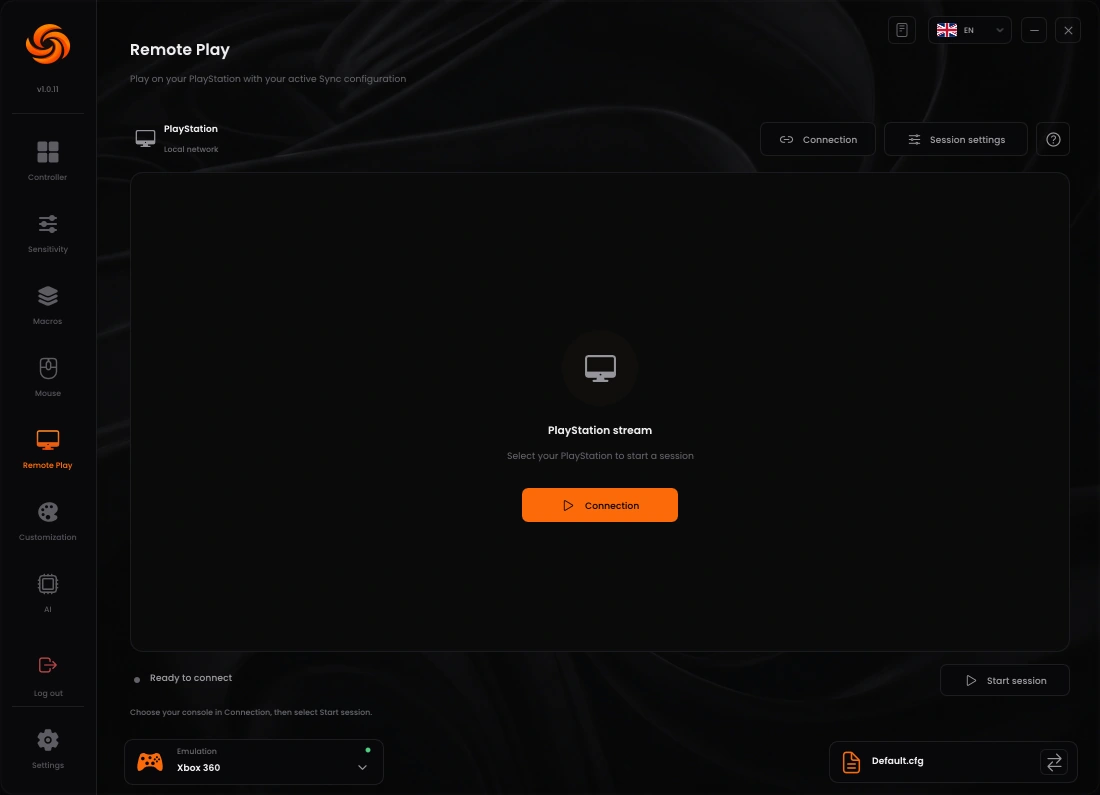
Rest-mode wake requires the console's own network/rest-mode settings and a paired console. If wake does not work, turn the console on directly to complete the first connection.
REMOTE PLAY PLUS
Internet connection, video & audio
Connect through PSN
- Enable Remote Play on the console and leave it available on its network.
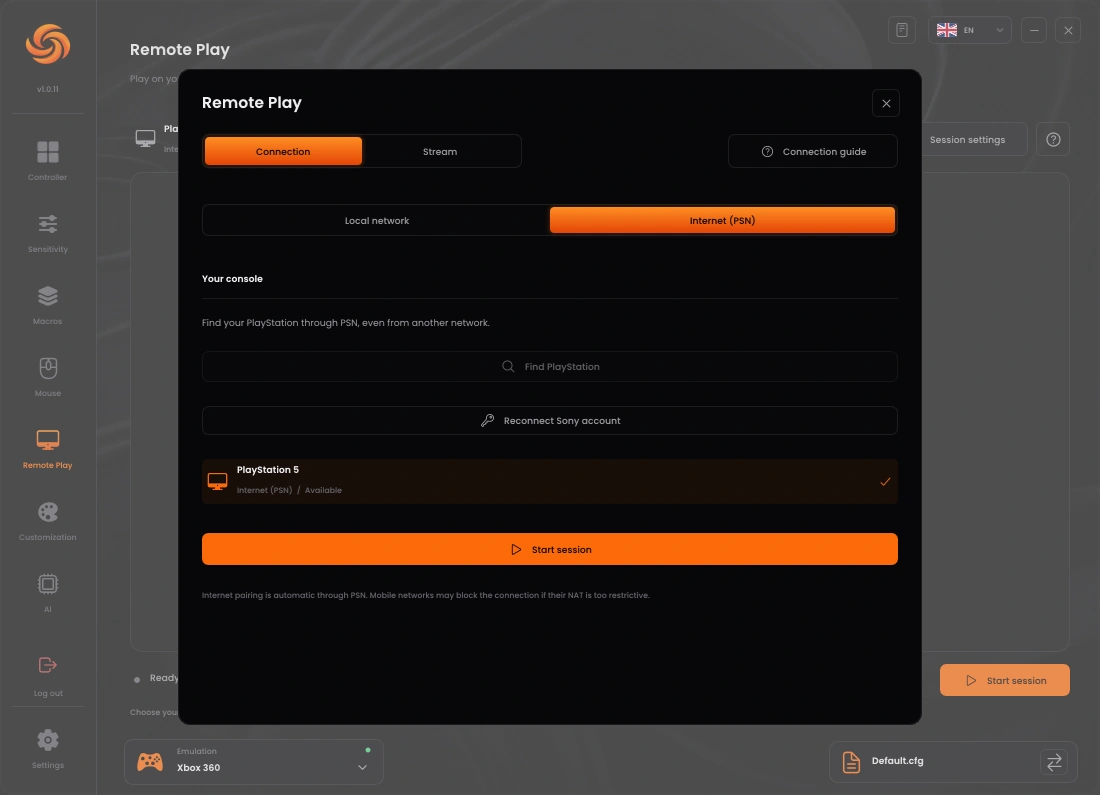
- In Sync, select Internet (PSN). Choose Sign in with PlayStation and sign in with the PSN account linked to the console.
- Paste the complete final Sony redirect address into Sync and complete the account retrieval. Select Find PlayStation, choose your console and select Start session.
- Internet pairing is automatic through PSN; this route does not require the local 8-digit pairing code. If authentication expires, use Reconnect Sony account and complete sign-in again.
Choose the right session mode
- Video session: leave Controller Only off. Start with a supported resolution such as 1080p and 60 FPS, then adjust Bitrate to the available connection. Higher requested modes are marked experimental and can fall back to a supported format.
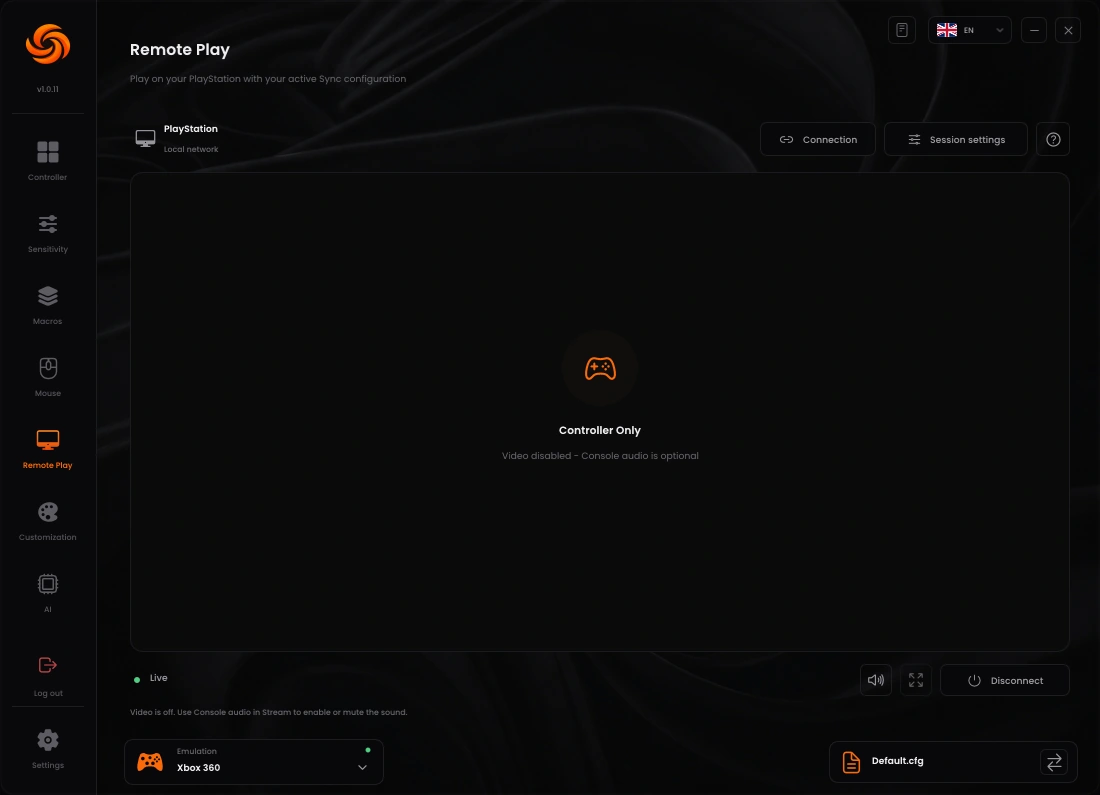
- Inputs and sound only: enable Controller Only before connecting, then enable Console audio if wanted. Play on the console's TV or monitor; Sync stops displaying and decoding video in this mode.
- Lower bandwidth: try Weak connection. This mode caps the video request at up to 540p / 60 FPS and 3 Mbps while prioritising responsive input. It keeps the original quality settings for later.
- Audio: enable Console audio, confirm the Windows playback device and volume, then test console sound. Controller rumble has its own separate switch.
- Fullscreen: use the player expand control or F11. Press Esc or F11 to return. A Controller Only session has no fullscreen video to open.
Fix a soft or blocky image
Change one setting, reconnect when required, then compare the same moving scene. If a stable image looks too compressed, increasing the bitrate may help. Blocks, corruption or freezes also require checking packet delivery and decoding: try Ethernet, compare H.264 and HEVC, and test Hardware decoding on and off. A very high bitrate can make an unstable link worse. Your download speed alone does not prove the local network or the console's upload path is stable.
STREAMING
Controller overlays for your stream
Choose the design and input source
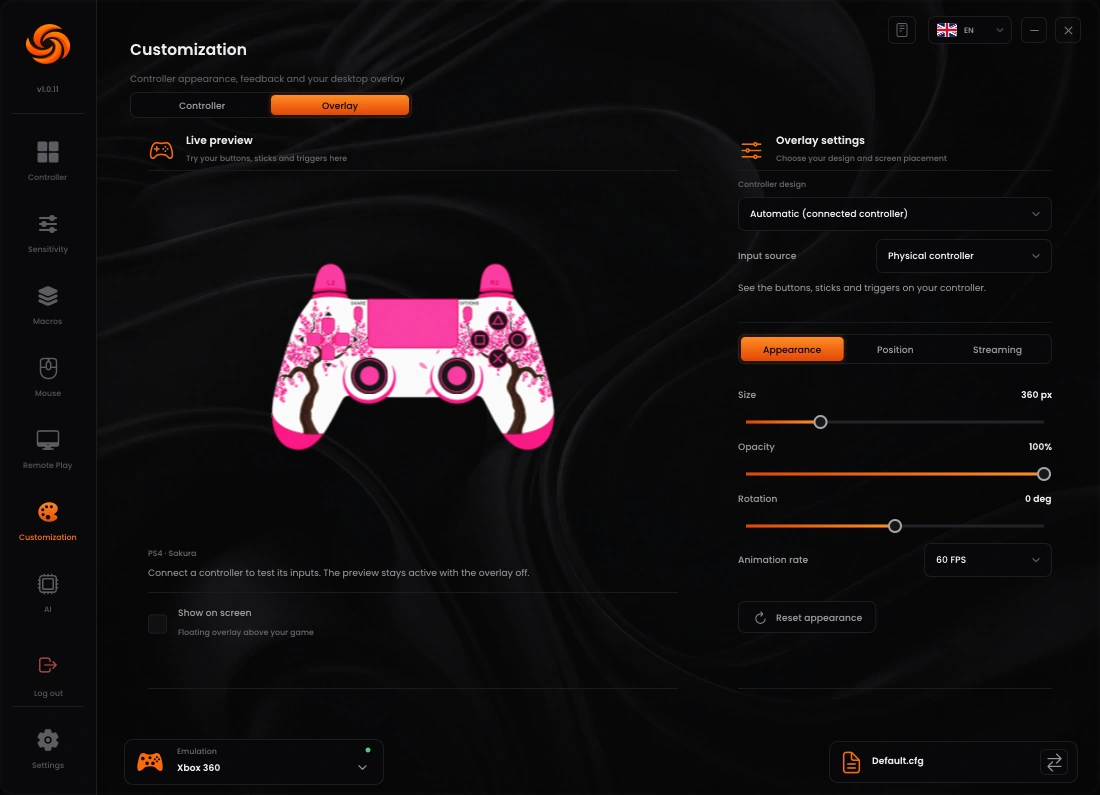
- Open Customization → Overlay and select a Controller design, or keep the automatic connected-controller design.
- Choose Input source → Physical controller to show physical inputs, or Sync output to show the result after remapping and macros.
- Test buttons, sticks and triggers in Live preview. Adjust Appearance for size, opacity, rotation and animation rate.
- For an overlay on your own display, enable Show on screen and use Position for the display, corner and margins. The desktop overlay works with a borderless or windowed game.
Add it to OBS or Streamlabs
- In Sync's overlay settings, open Streaming and choose OBS / Streamlabs.
- Enable Browser source, wait for the source to become ready, then select Copy browser URL.
- In OBS or Streamlabs, add a Browser source to your scene. Paste the complete copied URL and use a 600 × 600 source size with a transparent background.
- Position and scale the source in your scene, then press controller buttons to check the live result. Keep Sync open and signed in.
Add it to TikTok LIVE Studio
- In Sync, open Streaming and select TikTok LIVE Studio. Enable Browser source, then copy the URL from this page.
- In TikTok LIVE Studio, add a Link source and paste the entire copied address. Use 600 × 600 with a transparent background.
- Keep the generated hostname, port, path and private token exactly as copied. Do not replace the address with the store link, a Windows file path, a numeric IP address or a shortened URL.
- If you previously used Reset browser URL, replace the URL in every streaming source: the previous private link is invalidated.
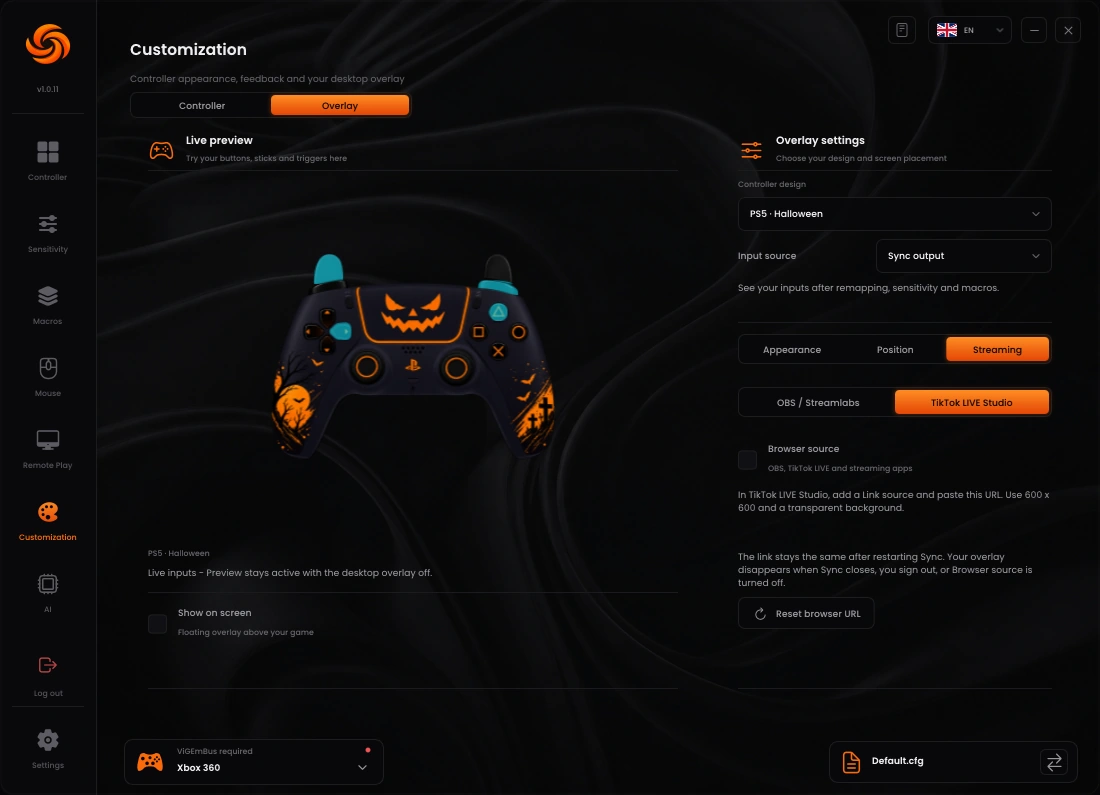
Closing Sync, signing out or disabling Browser source makes the streaming overlay disappear. This is separate from the desktop Show on screen switch. Keep the private browser URL out of public screenshots.
USB CONTROLLER PLUS
Set a supported polling rate
- Connect the controller with a USB data cable. Sync's USB overclock feature does not change a Bluetooth polling rate.
- Open Settings → Controller Overclock. Refresh the USB device list if the controller was just connected.
- Select the correct controller under USB controllers. Check its identity before applying a setting to a device.
- Choose an available Target polling rate and select Apply. Follow any administrator, driver or restart instruction shown by Sync.
- Reconnect or restart only when requested, then test the controller and check its status again. If a rate is unsupported or unstable, return to a supported setting using the controls in this window.
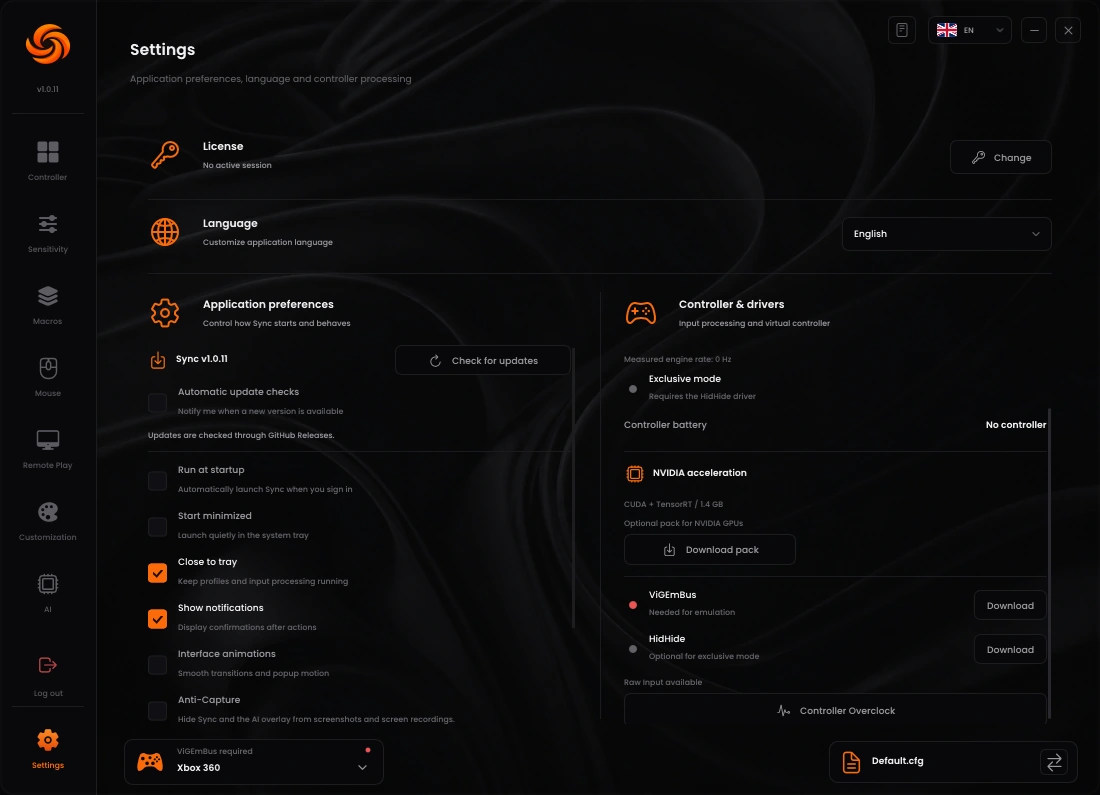
For a controller with native high-rate support, use its manufacturer's configuration first. In Settings, 4000/8000 Hz engine updates use active waits and can occupy a CPU core; use a lower engine rate when you need more headroom for the game or AI.
PREFERENCES
Startup, Anti-Capture & updates
- Choose your language in Settings → Language. The guide uses the English control names so you can match them directly.
- Set startup behaviour. Run at startup opens Sync when you sign in to Windows. Start minimized sends it to the tray; Close to tray keeps input processing running after the main window is closed.
- Use Anti-Capture when wanted. This setting requests that supported Windows capture methods exclude the Sync interface and AI overlay. It is not a universal guarantee for every recorder or capture method. Turn it off before taking a Sync screenshot for support.
- Check for updates. In the update area, select Check for updates. Use Download update when one is offered, then Restart to update when ready.
- Choose automatic downloading. Auto update downloads the update and installs it when Sync starts again. Sync saves profiles before installation; an exported backup is still useful before a major setup change.
- Keep the correct update channel. The official Sync loader receives official releases. A separate test loader receives test-channel builds; it is for testers and may contain unfinished changes. Do not substitute a test loader for a customer installation to obtain an ordinary update.
To close completely: if Close to tray is enabled, use the Sync tray menu to exit. Closing the main window alone leaves processing and the local browser overlay running.
TROUBLESHOOTING
Find the step that is missing
Follow the checks in order and retest after each change. Avoid changing sensitivity, model, routing and network settings at the same time: you need to know which change fixed the problem.
My controller is missing or does not respond
- Check the cable supports data, or verify the Bluetooth connection in Windows.
- Disconnect other controllers and select the intended device on Controller.
- Check Settings for an unmapped-device notice and confirm the controller is in its normal gaming mode.
- If the issue began with Exclusive mode, turn it off and check the current Sync executable in HidHide's application allow list.
The game receives double inputs, or remapping changes nothing
- Verify the game's controller input setting and Sync's Virtual controller selection.
- Resolve a missing ViGEmBus notice before testing virtual output.
- Use Exclusive mode to prevent the game also receiving the physical controller.
- Close another remapper or duplicate Sync instance that is sending the same inputs.
- Test a single obvious button mapping before restoring complex macros.
Mouse capture is stuck, or the mouse does not move the camera
- Press or release the configured Capture key according to the selected Capture mode; the default key is F8.
- Confirm Mouse & keyboard input is enabled in the active profile.
- Check the Output stick, mouse-button mappings and game input type.
- Compare game controller sensitivity and Sync's response settings. Very fast movement still encounters the game's controller turn limit.
A macro does not run, or repeats unexpectedly
- Check the active profile and the macro's enabled switch.
- Check Trigger and Only while holding requirements.
- Check Once, While held or Toggle mode; a toggle needs another press to stop.
- Match the output buttons to the game's actual action bindings.
- Disable other macros using the same trigger, then inspect every Press/Release pair and delay.
AI is locked, off, or warns that my PC is too slow
- AI AimAssist requires Plus; verify the license currently active in Sync.
- AI starts disabled on each launch. Enable it manually only after configuring it.
- Run Automatic Setup for the selected game and apply its result.
- Close unnecessary GPU workloads and try a lighter model. A higher requested FPS limit cannot supply missing processing capacity.
- If an engine is unavailable, check its diagnostic. CUDA/TensorRT need the optional NVIDIA pack and compatible hardware.
I see detection boxes, but the aim does not move
- Confirm Enable AI is on and hold the activation input shown on the AI page.
- Check Output matches mouse, virtual controller or the active Remote Play input route.
- Verify basic manual input reaches the game before testing AI correction.
- Disable conflicting mappings or another active Sync instance.
- If only Remote Play fails, reconnect the session and test a clear video image and manual controller input first.
Detection misses players, sees the wrong objects, or jumps between targets
- Check the game-specific model, selected screen and live image source.
- Use Show detections to distinguish a missed/false box from a movement-output problem.
- Raise confidence gradually for weak false positives; lowering it may recover missed players but admits more candidates.
- Check NMS on a single player and on nearby players. Avoid changing both thresholds at once.
- Reduce an overly broad FOV, then compare a still target, a moving target and two crossing targets.
- For Remote Play, resolve blur or blocky video before judging model accuracy.
Remote Play cannot find or pair with my PlayStation
- Confirm Remote Play is enabled and the console is switched on for the first test.
- Use Local network only when the PC and console share a local network; check the console's current IP if adding it manually.
- Use Internet (PSN) for separate networks and sign in to the account linked to that console.
- For local pairing, request a fresh code and enter it before expiry. Internet PSN pairing does not use that code.
- If Sony authentication fails, reconnect the account and paste the entire final redirect URL.
- If Internet connection negotiation times out on a mobile network, compare another network; some NAT configurations block the route.
Remote Play has blocks, freezes, audio issues or delayed movement
- Reconnect a single session; make sure another Remote Play client is not competing for the console.
- Prefer Ethernet and check the console's network path as well as the PC's.
- Compare codec and Hardware decoding settings one change at a time. Adjust bitrate to the link rather than always maximising it.
- Use Weak connection or Controller Only when video quality is less important than bandwidth and input response.
- For sound, enable Console audio and verify Windows' selected output and volume.
- If movement continues after releasing a stick, stop AI and macros to isolate manual Remote Play input, then report which route reproduces it.
TikTok rejects the URL, or my streaming overlay is blank
- Use the current Sync build and open Customization → Overlay → Streaming.
- Select your streaming app, enable Browser source and copy the URL again after it becomes ready.
- In TikTok use a Link source; in OBS/Streamlabs use a Browser source. Paste the generated address exactly, without replacing its hostname or changing it to HTTPS.
- Keep Sync open and signed in on the same PC. Check the live controller preview responds.
- If you reset the browser URL, replace it in the streaming source. Check the 600 × 600 source size and transparency settings.
- If validation still rejects the copied URL, send support the exact error and Sync version; redact the private token before sharing an address.
My subscription or update does not appear
- Check the order belongs to the account and activation details you are using.
- Confirm the plan and renewal status in the customer dashboard or billing management link.
- Reopen Sync or sign in again after a confirmed entitlement change.
- Use Check for updates in the correct official or test loader. An unavailable update check needs a working connection.
- Contact support with your order number, Sync version and the displayed error. Do not send your password or full license key in a public channel.
STILL NEED HELP?
Send us the useful details.
Include the Sync version, Windows version, controller and connection type, selected profile, affected feature and the steps that reproduce the problem. For AI, include the model and engine; for Remote Play, include Local network or Internet and the session settings. Add a clear screenshot with private details hidden.